Tutorial 6 of 7
Teamspaces, roles and the request portal
Intermediate 8 min
Share a Trackwell project with your team in a workspace, understand who may do what, work at the same time on the same project and let guests submit requests.
Alone, Trackwell works in your browser. For a team, save the project into a workspace: every member then sees the same project, changes appear live, and roles decide who may change what. You need an account for this; Trackwell uses passkeys, so there is no password to remember.
Save the project to a workspace
Choose File → Save to workspace…, sign in or create an account, pick a workspace (or create one) and save. The project is now one shared document. Invite people from the workspace page; the status line shows which workspace the project belongs to.
Roles
Trackwell uses the roles of the workspace:
- Owners and admins are project admins: they change the workflow, fields, SLA policies, board and portal settings.
- Members create and edit issues, comment, log work and run sprints.
- Viewers read everything, including comments, but cannot change anything. Trackwell shows a note and keeps every field read-only.
- Guests never see the project. They can only use the request portal (below).
A workspace admin can also give one person another role for this project only under Share and permissions….
Working at the same time
Several people can edit one project at once. When two people change different issues, or different fields of the same issue, both changes are kept. When two people change the same field of the same issue at the same moment, the later save wins and the status line says which field it was. Two new issues created at the same time get different keys.
Comments are stored separately for each issue, so a busy discussion never collides with field edits. Attachments are kept with the project and count against the workspace storage.
When a project grows large, Project → Archive resolved issues… moves old resolved issues into a read-only archive document.
The request portal
Service desks need a way for people outside the team to ask for help. Turn on Project → Request portal…, choose which request types guests may choose and write a short introduction. Then select Get the portal link… in the Requests tab and send the link.
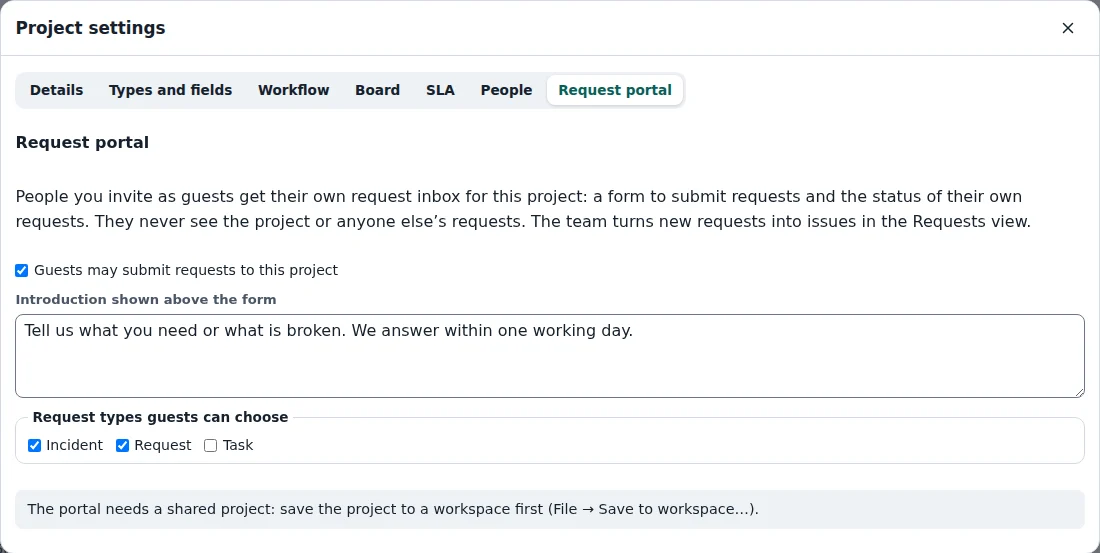
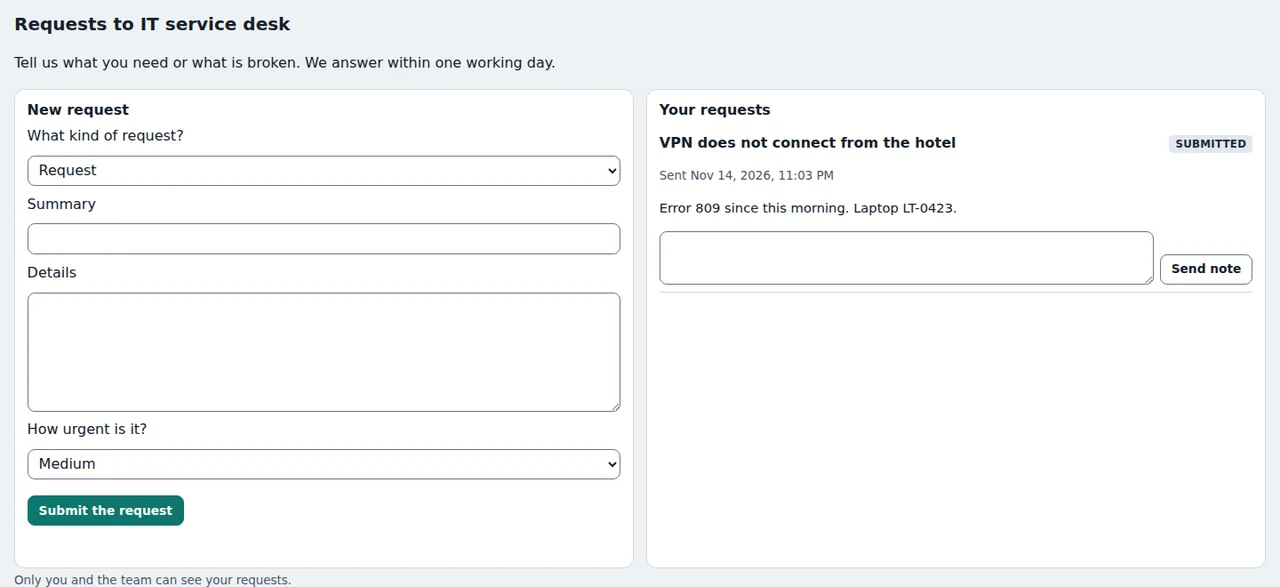
Whoever opens the link joins the workspace as a guest and sees a simple form: what kind of request, a one-line summary, details and how urgent it is. Guests only see their own requests and their status, and can add notes. They never see the project, the team’s discussion or anyone else’s requests.
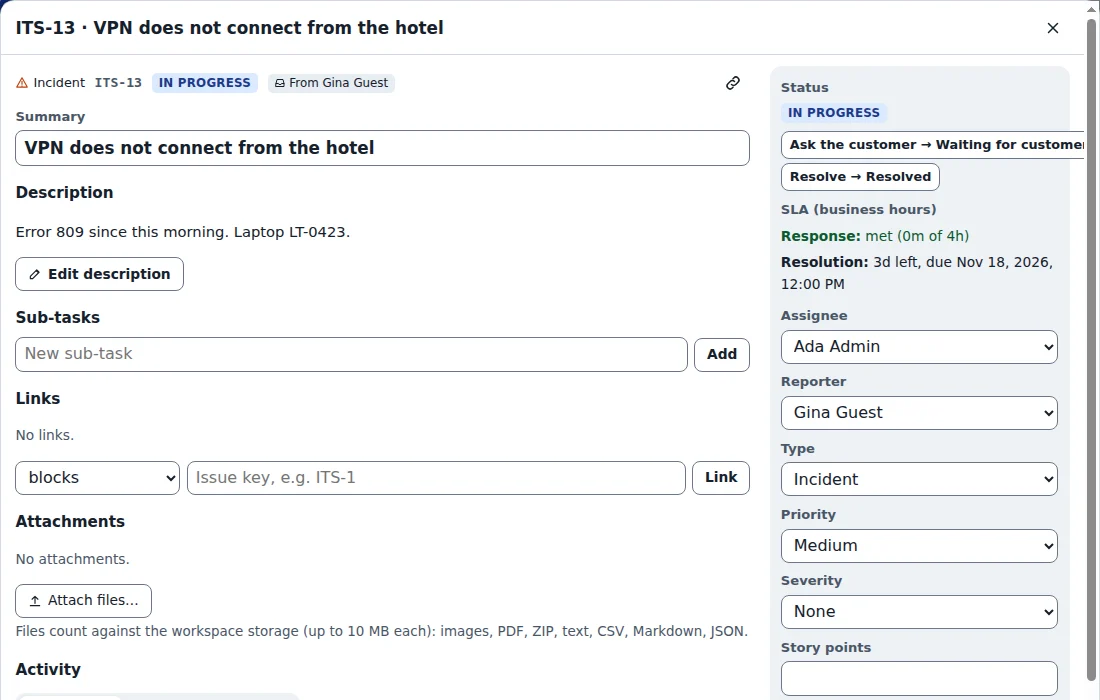
In the Requests tab the team sees new requests from every guest and turns them into issues with Create issues from new requests. Each new issue shows who it came from, and SLA timers start at the moment the request was sent. When the issue moves on, the guest sees the new status. A comment with Also send it to the requester ticked appears in the guest’s request as a reply.
Ready to try it?