Tutorial 5 of 7
Workflows, fields and SLA timers
Advanced 8 min
Design your own statuses and transitions with the keyboard-accessible workflow editor, add custom fields and set business-hours SLA targets for incidents and requests.
Every project has its own settings under the Project menu. Only project admins can change them; everyone else can look at them.
Statuses and categories
Open Project → Workflow…. A status is a step such as Backlog, In progress or Waiting for customer. Each status belongs to one of three categories — To do, In progress or Done — which drive the colours, the board, the dashboards and queries like statusCategory != Done. Add status creates one; choose its category, and tick Pauses the SLA for statuses where the team waits for someone else.
Transitions
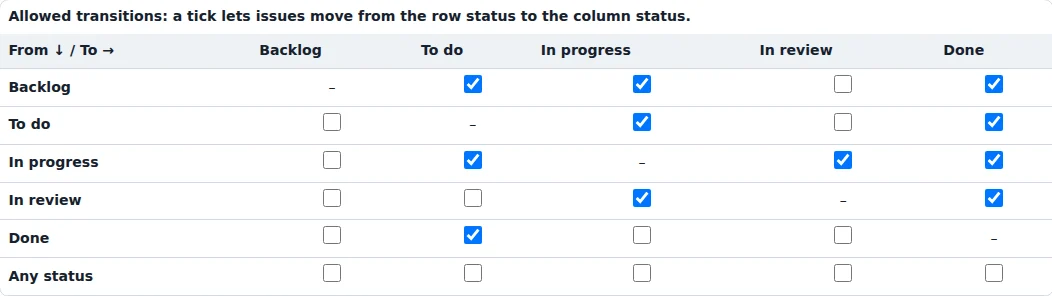
The table Allowed transitions has a row for every status you come from and a column for every status you go to. A tick allows the move. A tick in the row Any status lets an issue jump to that status from anywhere, which suits statuses such as Won’t do.
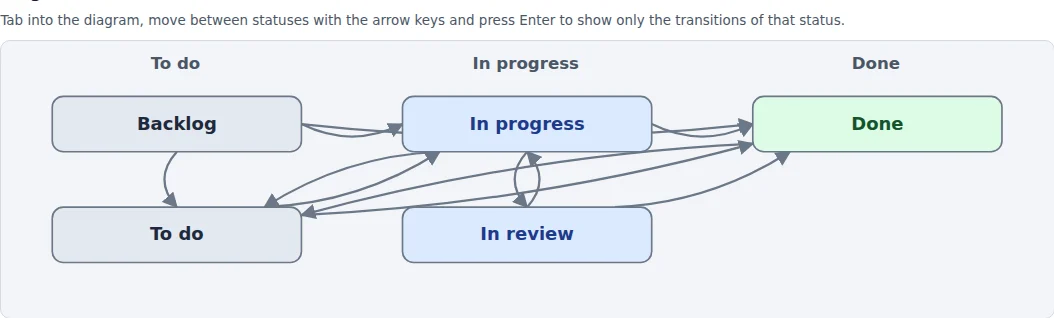
The Diagram above the table draws the workflow from left to right by category. It works with the keyboard: tab into the diagram, move between statuses with the arrow keys and press Enter to show only the transitions of that status. A note under the diagram warns when a status cannot be reached or cannot be left.
Transition rules
Under Rules of all transitions every move gets a name (the button text in the issue) and optional rules:
- Required fields — for example an assignee before Start work, or a description before Won’t do
- Ask for a resolution — the resolution (such as Done, Fixed, Duplicate) is asked for when the issue moves to a done status
- Only for these roles — for example only admins may close as Won’t do
Types and fields
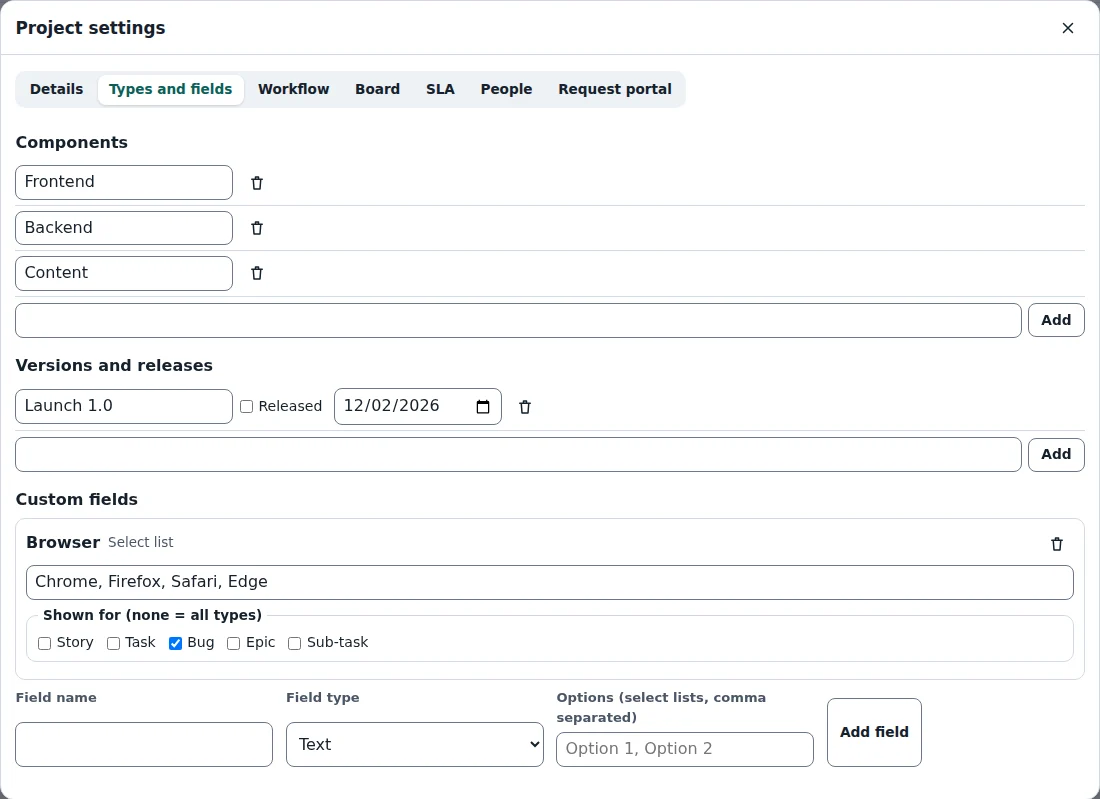
Project → Issue types and fields… chooses the issue types of the project and adds custom fields: text, number, select list, person or date. A custom field can be limited to some issue types, and it can be used in queries by its name in quotes, as in "Customer" = ACME. Components, versions and their release dates are kept here too.
Board columns… groups statuses into board columns and sets WIP limits.
SLA timers
Project → SLA and business hours… sets the working days, the hours of a working day, holidays and the UTC offset, and the SLA policies: for an issue type and a priority, a Response target and a Resolution target, both in business time.
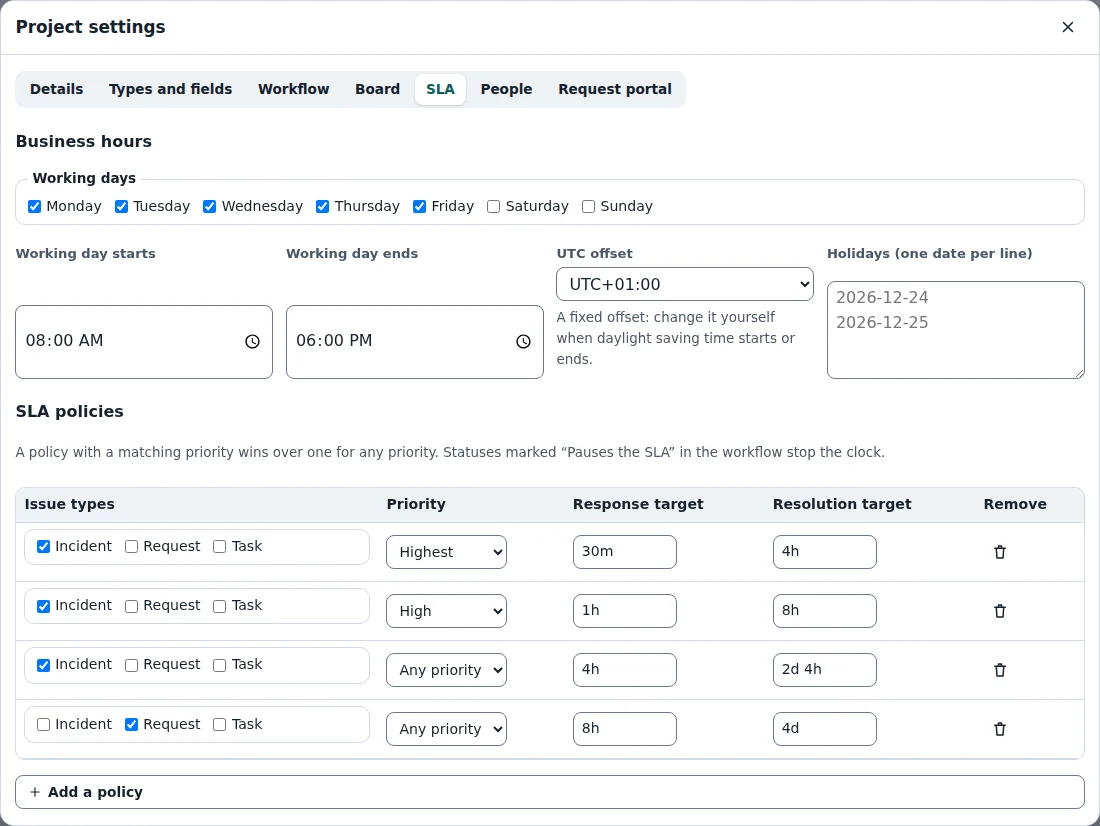
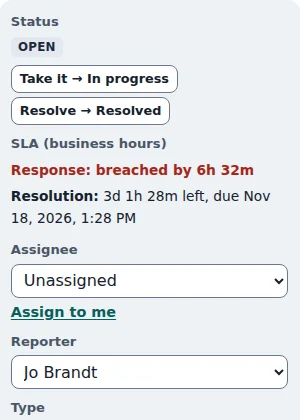
The response clock stops at the first reply by someone other than the reporter (or the first status change); the resolution clock stops at a done status. Statuses marked Pauses the SLA stop both. Issues show their timers in the issue dialog, and the dashboard lists SLA breaches and the next resolution deadlines. The tool Trackwell SLA Calculator runs the same business-hours calculation for a single ticket.
Ready to try it?