Tutorial 1 of 7
Your first project in five minutes
Beginner 5 min
Open a Trackwell template, find your way around the board, create issues with the C key and keep your project in this browser or in a file.
Trackwell keeps work in projects. Every project has a short key such as WEB, and every issue in it gets a number: WEB-1, WEB-2 and so on. An issue is anything the team has to do or fix — a task, a bug, a story, an epic that groups stories, a sub-task, an incident or a request.
You can use Trackwell without an account: your projects then stay in this browser. Sharing with a team is covered in the tutorial Teamspaces, roles and the request portal.
Start from a template
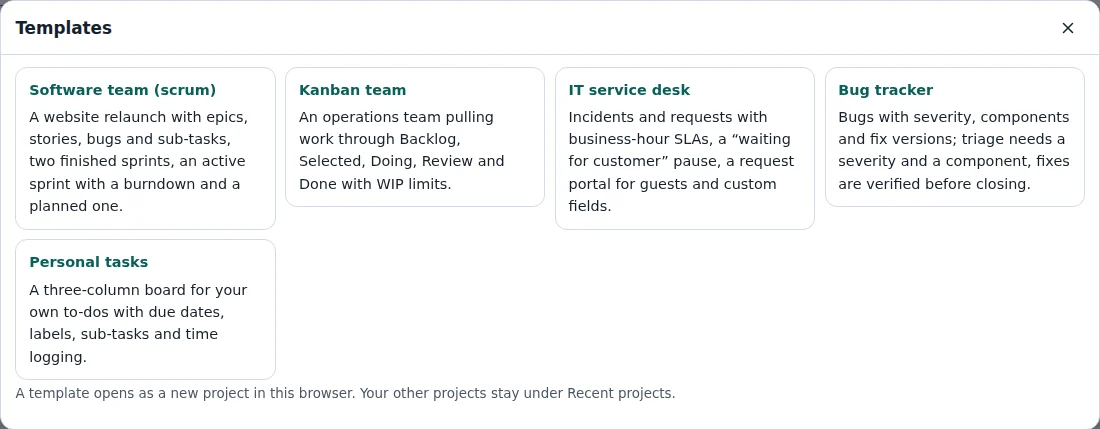
Choose File → Templates… to see the five templates:
- Software team (scrum) — a backlog, sprints, epics, stories and bugs
- Kanban team — continuous flow with WIP limits
- IT service desk — incidents and requests with SLA timers
- Bug tracker — bugs with severity, components and versions
- Personal tasks — a simple board for yourself
A template opens as a new project. Its dates are set relative to today, so sprints are running and some issues are always due soon.
The board
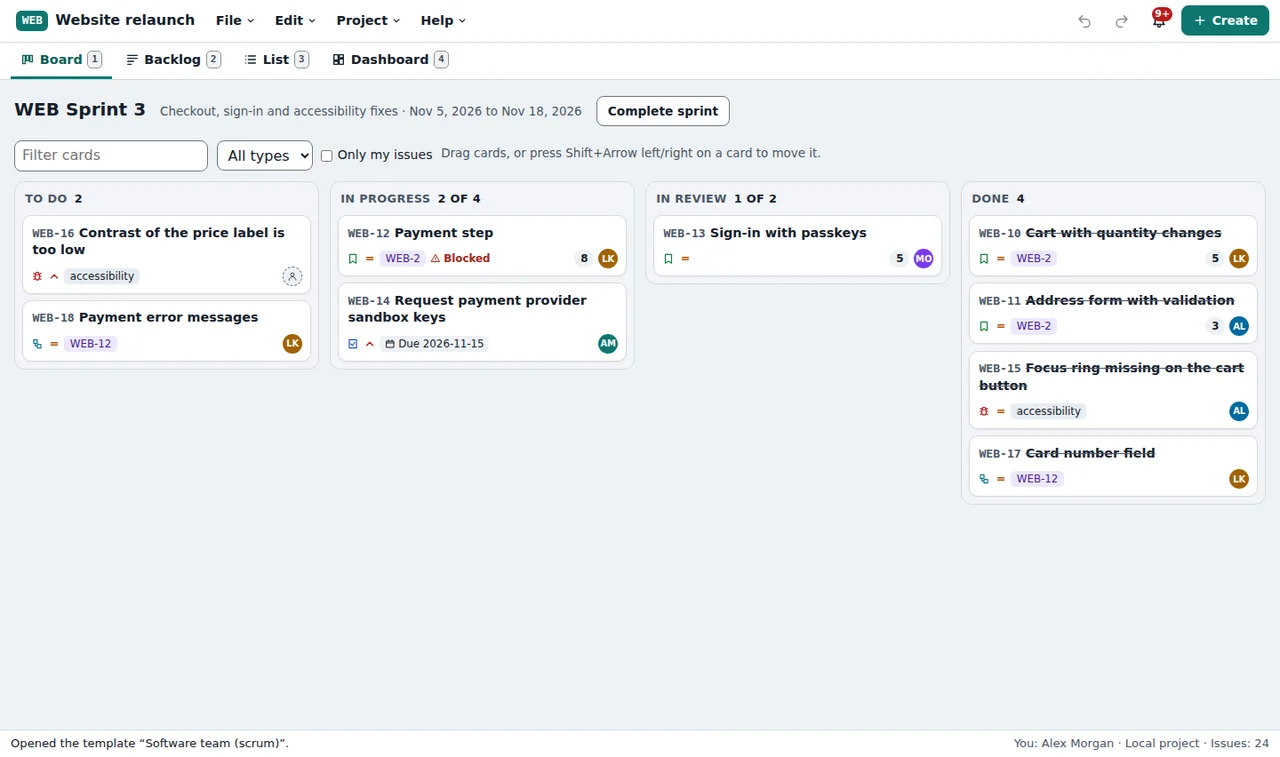
The Board tab shows the issues of the running sprint (or all open issues on a kanban board) in columns such as To do, In progress, In review and Done. Each card shows the key and summary, and small signs for the issue type, priority, epic, story points, due date and the person working on it. A red Blocked sign means another open issue blocks this one.
Drag a card to another column to change its status. With the keyboard, focus a card and press Shift+Arrow right or Shift+Arrow left. A column header turns red when it holds more issues than its WIP limit allows.
Above the board you can filter the cards by text, by issue type, or show Only my issues.
Create an issue
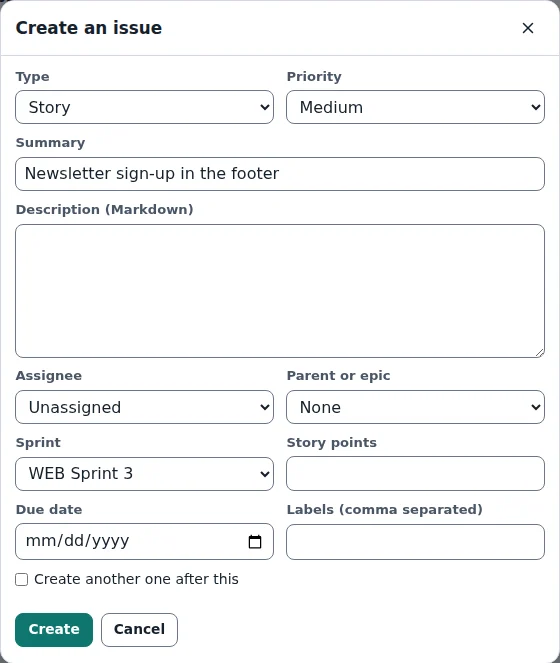
Press C (or Create in the toolbar). Choose the type, write a one-line summary and, if you like, a description, a priority and an assignee. Create another one after this keeps the dialog open for a quick series. The new issue gets the next free key and appears in the backlog or on the board.
To open an issue, select its card or press Enter on it. J and K move to the next and previous issue.
Who are you?
In a local project Trackwell needs to know who you are, so that assignee = me, notifications and comments use the right person. Choose Project → Who are you?… and pick yourself from the people list. In a shared workspace this comes from your account.
Saving
Changes are saved in this browser as you work; File → Recent projects… lists them. File → Save file writes a .trackwell.json file you can keep, back up or send to someone, and File → Open file… opens it again. Ctrl+Z undoes the last change, Ctrl+Shift+Z redoes it.
Press ? for the list of keyboard shortcuts. Single-key shortcuts such as C, J and K can be switched off there if they get in the way of your screen reader or speech input.
Ready to try it?