Tutorial 2 of 7
Issues in detail — descriptions, comments, links and time
Beginner 7 min
Write Markdown descriptions, mention people in comments, link and split issues, watch them, log your time and attach files in Trackwell.
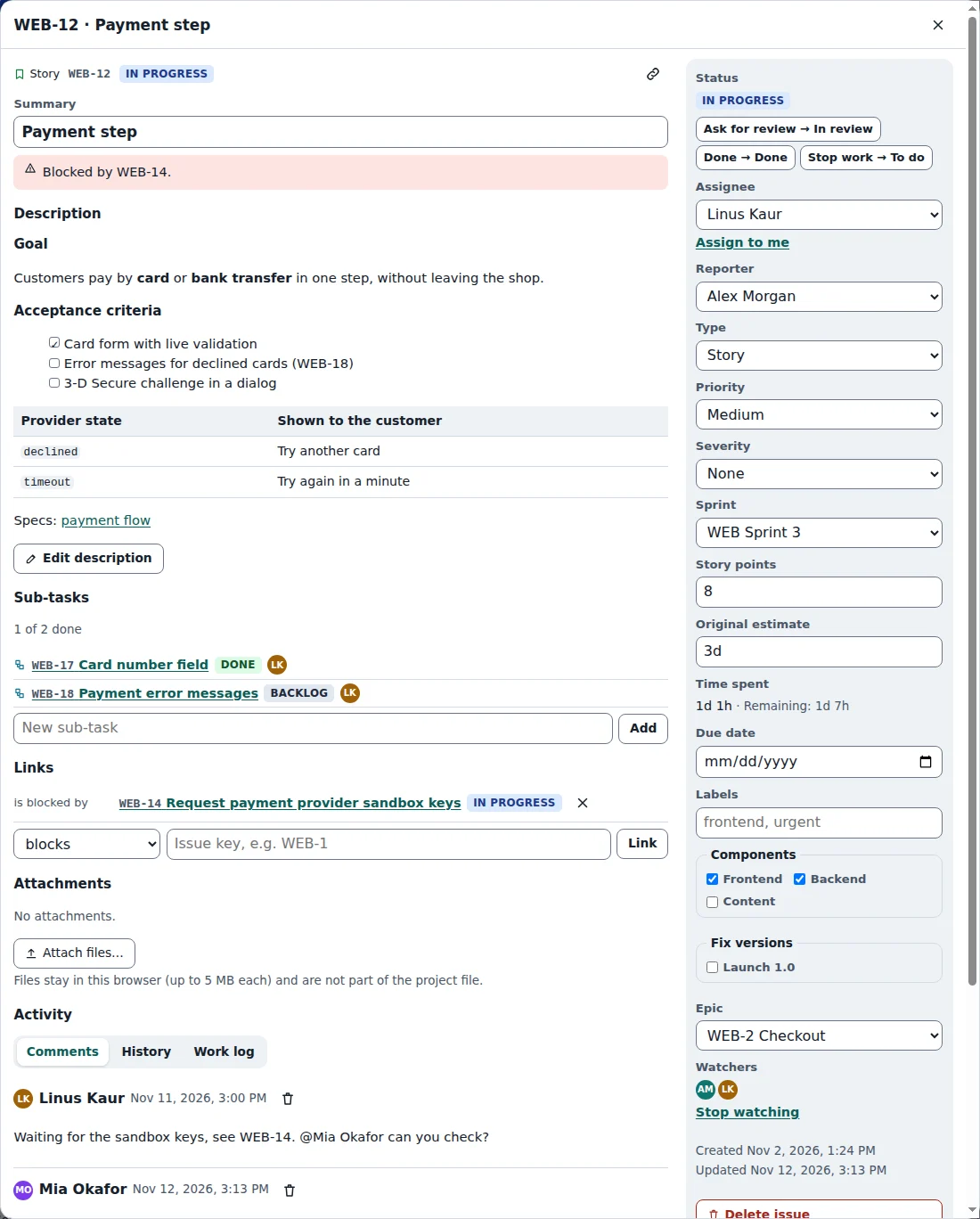
Open an issue from the board, the backlog or the list. The issue dialog has the description, comments and activity on the left and the fields on the right: status, assignee, reporter, priority, severity, sprint, story points, estimates, labels, components, versions, due date and any custom fields of the project.
Status and transitions
The buttons under Status are the moves the workflow allows from the current status, for example Ask for review → In review or Stop work → To do. Some moves ask for more: an assignee, a resolution such as Done or Won’t do, or another field. When that happens the dialog says what is missing. Who may use a move and which fields it requires is set in the workflow — see Workflows, fields and SLA timers.
Every field change is saved at once and appears under History, with who changed it, when, and the old and new value.
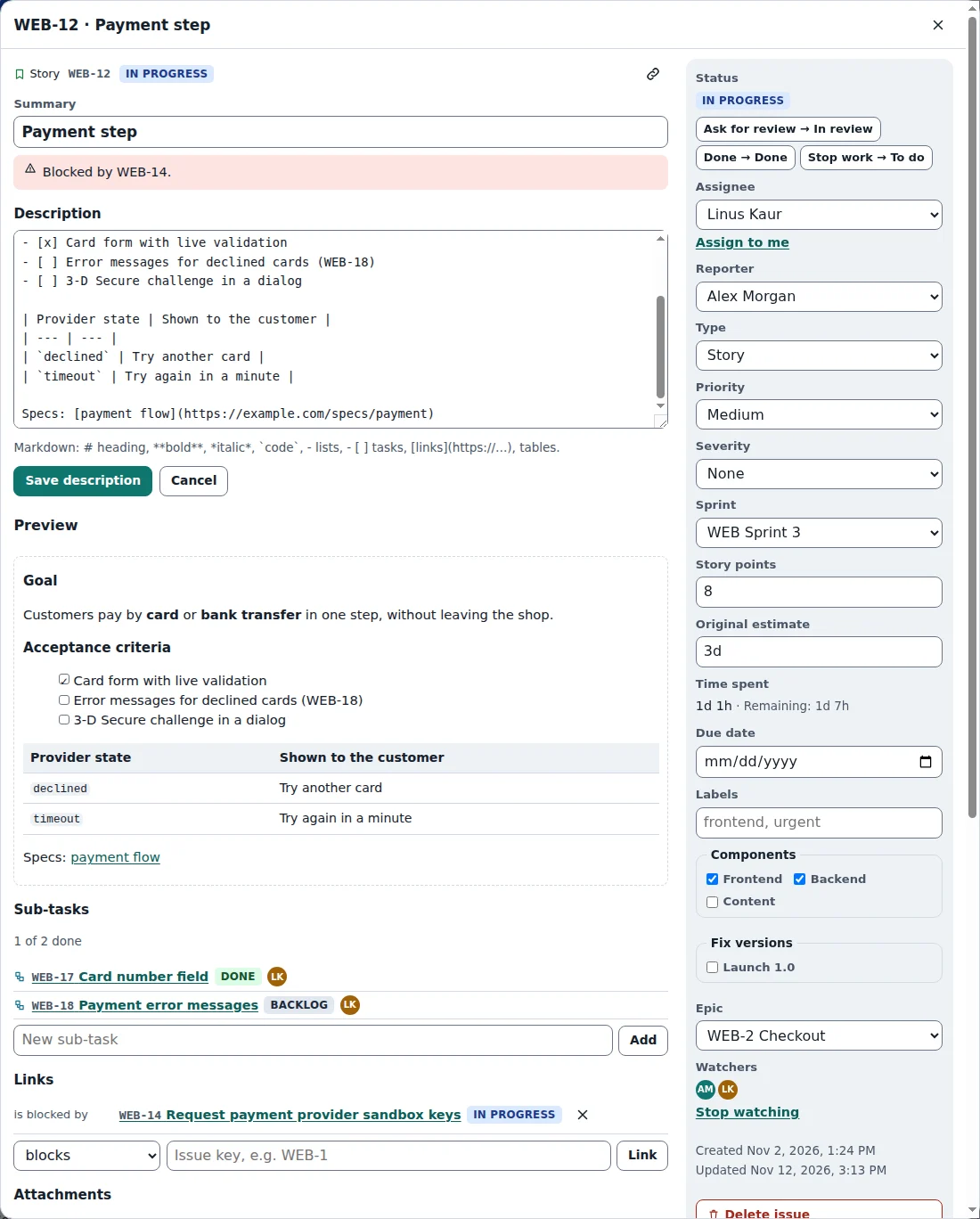
Description in Markdown
Select Edit description to write in Markdown: # heading, **bold**, *italic*, backticks around code, lists, task lists with - [ ], tables and links. Preview shows the result before you save. Links only work for https://, http:// and mailto: addresses; anything else stays plain text, so a description can never run a script.
Comments and mentions
Write a comment under Comments. Type @ and the first letters of a name to mention someone; pick the person from the list with the arrow keys and Enter. Mentioned people get a notification under the bell in the toolbar. People who are assigned to an issue, reported it or watch it also hear about new comments and status changes. Watch this issue adds you to the watchers.
Sub-tasks, epics and links
Large work gets split up. A story or task can have sub-tasks (New sub-task in the issue). An epic groups stories and tasks: the epic shows its issues and how many are done, and New story in this epic creates one in place.
Under Links you connect issues: blocks, is blocked by, relates to, duplicates and is duplicated by. Links are stored on both issues, so when WEB-14 blocks WEB-12, WEB-12 shows is blocked by WEB-14 and the blocked sign on its card until WEB-14 is done.
Time and estimates
Enter an Original estimate like 2d or 4h 30m, then use Log work to record time spent: how long, the day and the start time, and a note. The issue shows the time spent and the remaining estimate. The whole work log can go to Timeslice — see Jira import, CSV and Timeslice.
Attachments
Attach files… adds screenshots, PDFs, logs or other files. In a local project, files stay in this browser (up to 5 MB each) and are not part of the project file. In a shared workspace they are stored with the project and count against the workspace storage.
Ready to try it?